



MS Excel: How to use the DCOUNT Function (WS)
This Excel tutorial explains how to use the Excel DCOUNT function with syntax and examples.
Description
The Microsoft Excel DCOUNT function returns the number of cells in a column or database that contains numeric values and meets a given criteria.
The DCOUNT function is a built-in function in Excel that is categorized as a Database Function. It can be used as a worksheet function (WS) in Excel. As a worksheet function, the DCOUNT function can be entered as part of a formula in a cell of a worksheet.
Syntax
The syntax for the DCOUNT function in Microsoft Excel is:
DCOUNT( range, [field], criteria )
Parameters or Arguments
- range
- The range of cells that you want to apply the criteria against.
- field
- Optional. It is the column to count the numeric values that meet the criteria. You can either specify the numerical position of the column in the list or the column label in double quotation marks. If field is omitted, it will count all records that match the criteria.
- criteria
- The range of cells that contains your criteria.
Returns
The DCOUNT function returns a numeric value.
Applies To
- Excel for Office 365, Excel 2019, Excel 2016, Excel 2013, Excel 2011 for Mac, Excel 2010, Excel 2007, Excel 2003, Excel XP, Excel 2000
Type of Function
- Worksheet function (WS)
Example (as Worksheet Function)
Let's look at some Excel DCOUNT function examples and explore how to use the DCOUNT function as a worksheet function in Microsoft Excel:
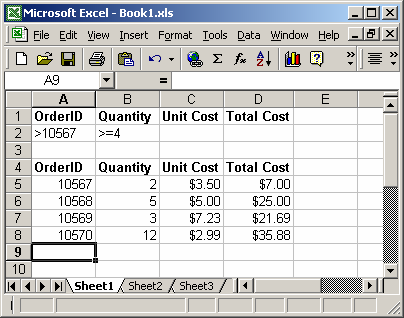
Based on the Excel spreadsheet above, you could use the DCOUNT function as follows:
=DCOUNT(A4:D8, "Unit Cost", A1:B2)
Result: 2
The DCOUNT function example above would return 2 because in the range A4:D8, there are 2 occurrences that meet the conditions in A1:B2. Those conditions are OrderID > 10567 and Quantity >= 4. By specifying "Unit Cost" as the second parameter, the DCOUNT function will only count the numeric values in the "Unit Cost" column that meet the criteria. If a value in the "Unit Cost" column is not numeric, it will not be included in the DCOUNT function calculations.
We could modify the DCOUNT function example as follows to specify the 3rd position in the range A4:D8 instead of "Unit Cost":
=DCOUNT(A4:D8, 3, A1:B2)
Result: 2
This would return the same results as the first example, except instead of using "Unit Cost" as the second parameter we use 3 to specify the third position in the range A4:D8.
We could also omit the field parameter if we want to count all of the records that match the conditions in A1:B2 (and we don't really care about counting numeric values in a particular field) as follows:
=DCOUNT(A4:D8, , A1:B2)
Result: 2
We could limit our criteria to only A1:A2 with the following DCOUNT function example:
=DCOUNT(A4:D8, , A1:A2)
Result: 3
This example would return 3 because in the range A4:D8, there are 3 occurrences that meet the condition in A1:A2. That condition is OrderID > 10567. Note: we aren't checking a particular field for numeric values so the second parameter is omitted.
Using Named Ranges
You can also use a named range in the DCOUNT function. A named range is a descriptive name for a collection of cells or range in a worksheet. If you are unsure of how to setup a named range in your spreadsheet, read our tutorial on Adding a Named Range.
For example, we've created a named range called orders that refers to Sheet1!$A$4:$D$8.
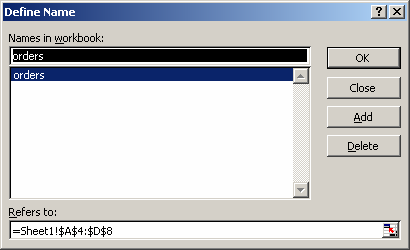
Then we've entered the following data in Excel:
Based on the Excel spreadsheet above, we could replace the range A4:D8 with the named range called orders. The DCOUNT function could be modified as follows:
=DCOUNT(orders, , A1:A2)
Result: 3
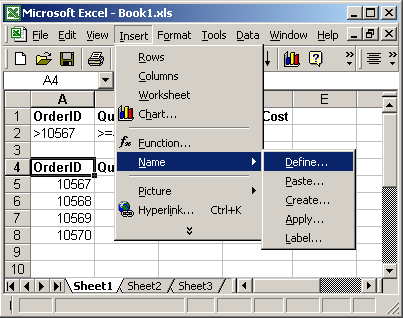
To view named ranges: Under the Insert menu, select Name > Define.
Advertisements