



MS Excel 2007: Display the fields in the Values Section in a single column in a pivot table
This Excel tutorial explains how to display the fields in the values section as a single column in a pivot table in Excel 2007 (with screenshots and step-by-step instructions).
See solution in other versions of Excel:
Question: In Microsoft Excel 2007, I've created a pivot table with two fields in the Values Section of the pivot table. These fields are the sum of the Quantity as well as the sum of the Total cost of an order. The pivot table seems to be populating the Values section in multiple columns and I want to see the results in a single column.
How can I set up my pivot table so that the Quantity and Total cost (in the Values section) values show up in a single column instead of being listed in two?
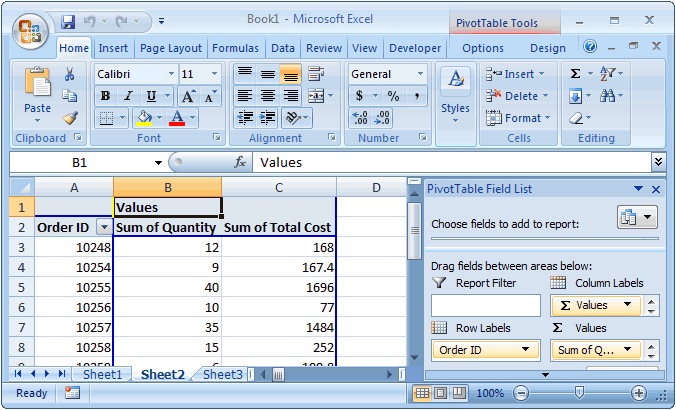
Answer: Excel may format your Values section of your pivot table to populate your values in multiple columns. In this example, you can see that the "Sum of Quantity" as well as "Sum of Total Cost" fields are being displayed in multiple columns. We want to see these values in a single column.
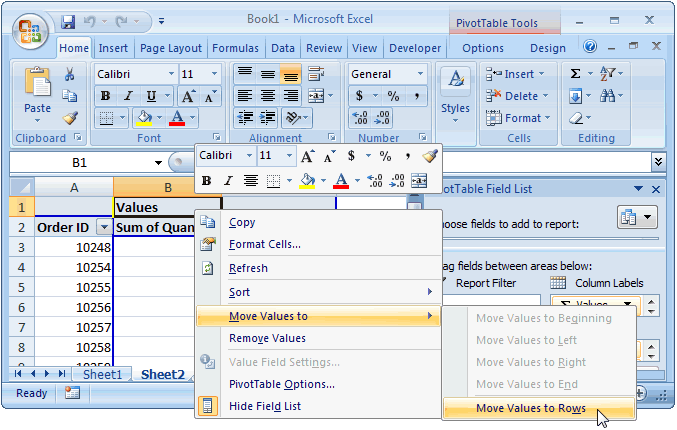
Right click on the Values field (cell B1 in this example) and select Move Values to > Move Values to Rows from the popup menu.
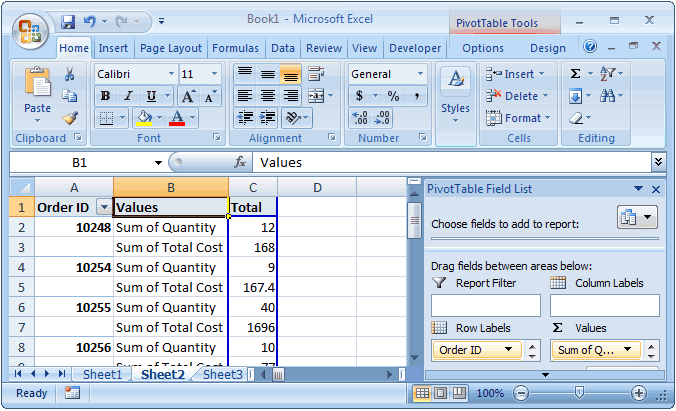
Now your pivot table should display the "Sum of Quantity" and "Sum of Total Cost" fields in a single column, populating down.


Advertisements