



MS Access: Format Function (with Numbers)
This MSAccess tutorial explains how to use the Access Format function (as it applies to numeric values) with syntax and examples.
Description
The Microsoft Access Format function takes a numeric expression and returns it as a formatted string.
Syntax
The syntax for the Format function in MS Access is:
Format ( expression, [ format ] )
Parameters or Arguments
- expression
- The value to format.
- format
Optional. It is the format to apply to the expression. You can either define your own format or use one of the named formats that Access has predefined such as:
Format Explanation General Number Displays a number without thousand separators. Currency Displays thousand separators as well as two decimal places. Fixed Displays at least one digit to the left of the decimal place and two digits to the right of the decimal place. Standard Displays the thousand separators, at least one digit to the left of the decimal place, and two digits to the right of the decimal place. Percent Displays a percent value - that is, a number multiplied by 100 with a percent sign. Displays two digits to the right of the decimal place. Scientific Scientific notation. Yes/No Displays No if the number is 0. Displays Yes if the number is not 0. True/False Displays False if the number is 0. Displays True if the number is not 0. On/Off Displays Off if the number is 0. Displays On is the number is not 0.
Applies To
The Format function can be used in the following versions of Microsoft Access:
- Access 2019, Access 2016, Access 2013, Access 2010, Access 2007, Access 2003, Access XP, Access 2000
Example
Let's look at how to use the Format function with numbers in MS Access:
Format (210.6, "#,##0.00")
Result: '210.60'

Format (210.6, "Standard")
Result: '210.60'

Format (0.981, "Percent")
Result: '98.10%'

Format (1267.5, "Currency")
Result: '$1,267.50'
Example in VBA Code
The Format function can be used in VBA code in Microsoft Access.
For example:
Dim LValue As String

LValue = Format (0.981, "Percent")
In this example, the variable called LValue would now contain the value of '98.10%'.
Example in SQL/Queries
You can also use the Format function in a query in Microsoft Access.
For example:
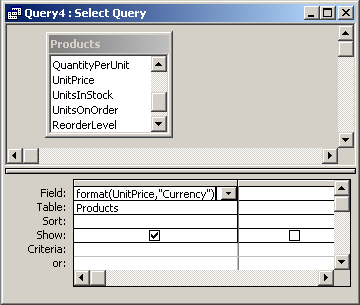
In this query, we have used the Format function as follows:
Expr1: Format(UnitPrice,"Currency")
This query will return the UnitPrice field formatted as a currency value. Since no label was provided, the results will be displayed in a column called Expr1. You can replace Expr1 with a column name that is more meaningful.
For example:
FormattedValue: Format(UnitPrice,"Currency")
The results would now be displayed in a column called FormattedValue.
Advertisements