



MS Excel 2011 for Mac: Freeze first row and first column
This Excel tutorial explains how to freeze panes to keep the first row and first column visible when scrolling in Excel 2011 for Mac (with screenshots and step-by-step instructions).
See solution in other versions of Excel:
Question: In Microsoft Excel 2011 for Mac, I have a spreadsheet with column headings. I need to freeze the first row and also freeze the first column. That way, I can see the first row and first column at all times even when I scroll. How can I do this?
Answer: If you need to see the first column (column A) and first row (row 1) even after scrolling, you could try freezing the pane in Excel.
To freeze the first row and column, open your Excel spreadsheet.
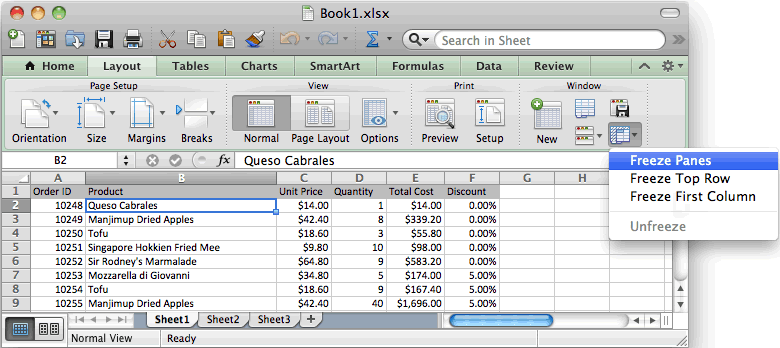
Select cell B2. Then select the Layout tab from the toolbar at the top of the screen. Click on the Freeze Panes button and click on the Freeze Panes option in the popup menu.
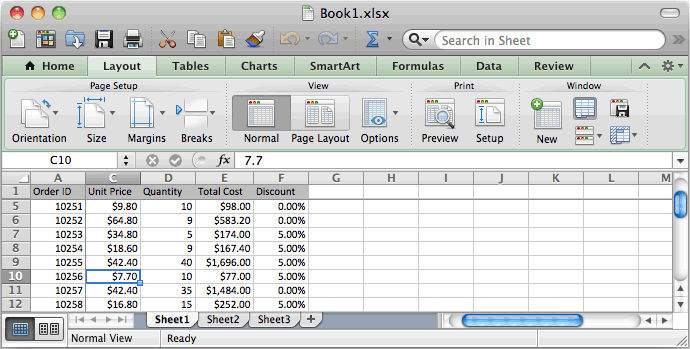
Now when you scroll, you should still continue to see row 1 and column A.
Advertisements