



MS Excel 2011 for Mac: Sort data in alphabetical order based on 2 columns
This Excel tutorial explains how to sort data in alphabetical order based on two columns in Excel 2011 for Mac (with screenshots and step-by-step instructions).
See solution in other versions of Excel:
Question: In Microsoft Excel 2011 for Mac, I'm trying to sort a chart that has 6 columns of data. I need to sort this data by 2 columns - first by column B (ie: Product column) in alphabetical order and then by column D (ie: Quantity) smallest to largest. How do I do this?
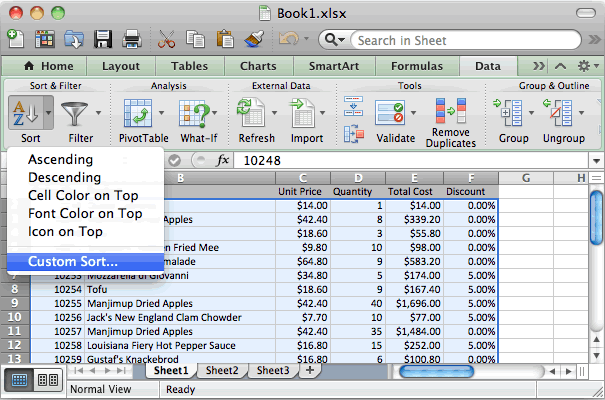
Answer: To apply this sort in Excel, highlight the data that you wish to sort. Then select the Data tab from the toolbar at the top of the screen. Then click on the Sort button and select Custom Sort from the popup menu.
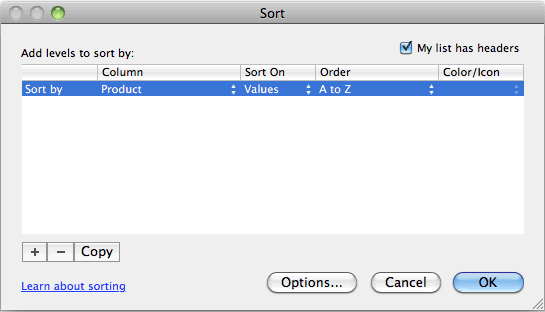
When the Sort window appears, select the first column that you wish to sort by. In this example, we want to sort by the Product column (column B) in alphabetical order (A to Z). Then click on the + sign at the bottom left of the window.
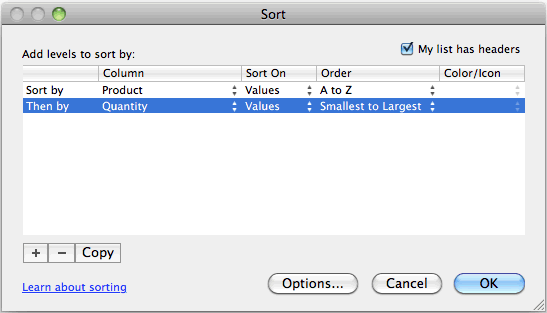
Enter the second column that you wish to sort by. In this example, we want to sort next by the Quantity column (column D) in Smallest to Largest. Then click on the OK button.
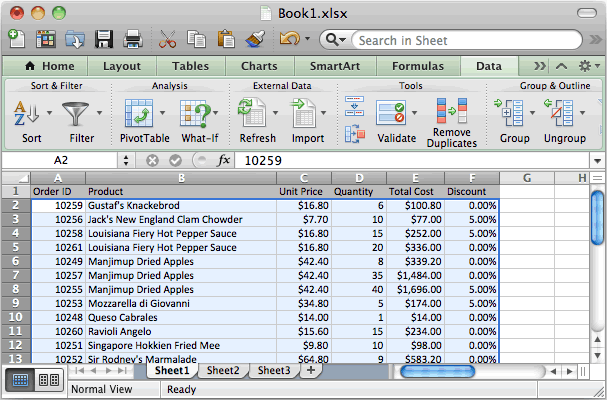
Now when you return to the spreadsheet, the data should be sorted first by Product and then by Quantity.
Advertisements