



MS Excel 2011 for Mac: Change the background color of a cell
This Excel tutorial explains how to change the background color of a cell in Excel 2011 for Mac (with screenshots and step-by-step instructions).
See solution in other versions of Excel:
Question: How do I change the background color of a cell in Microsoft Excel 2011 for Mac?
Answer: By default when you create a new workbook in Excel 2011 for Mac, all cells will be formatted with a background color that is transparent. This allows you to see the grid lines in the worksheet. You can change the background color of any cell to enhance the look of your document.
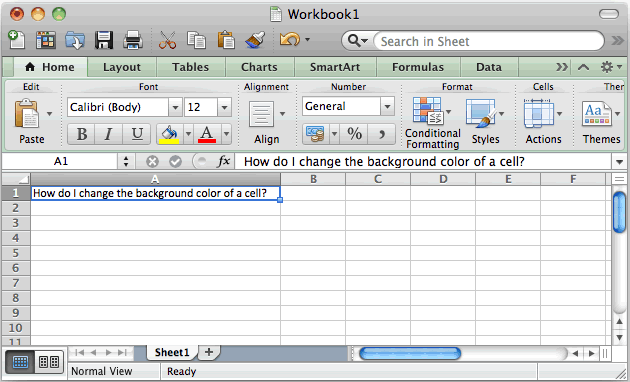
To change the background color of a cell, select the cell that you wish to change the color of.
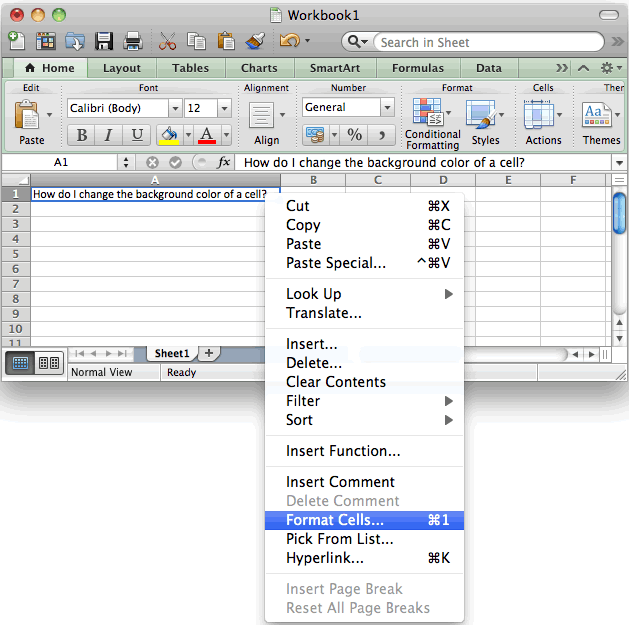
Right-click and then select "Format Cells" from the popup menu.
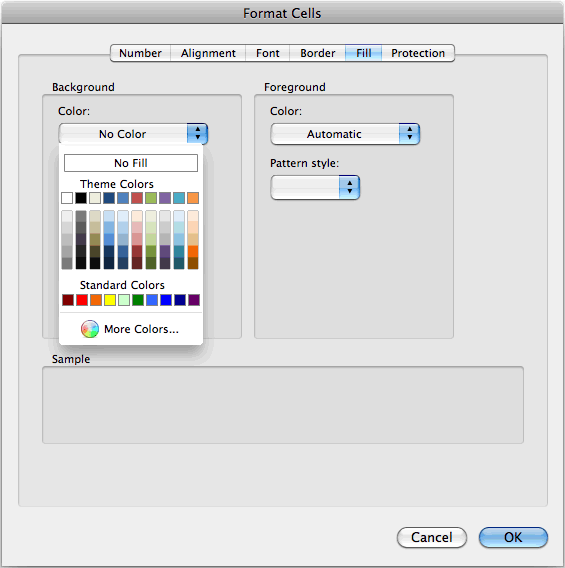
When the Format Cells window appears, select the Fill tab. Next click on the Color drop down to choose the color that you wish to use as the background color or you can choose "No color" to return the cell back to its default transparency.
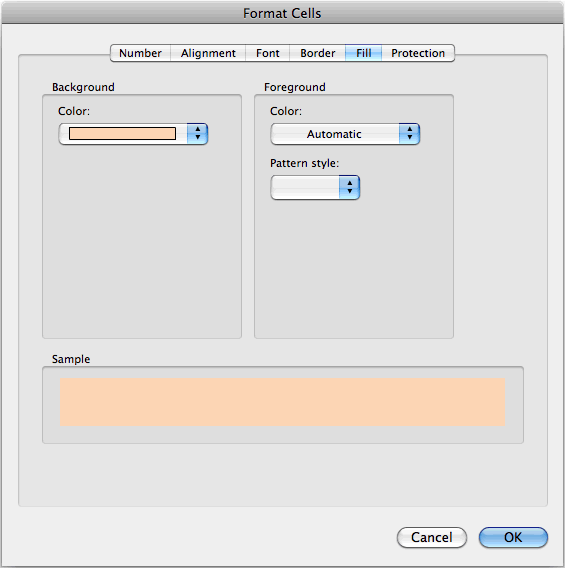
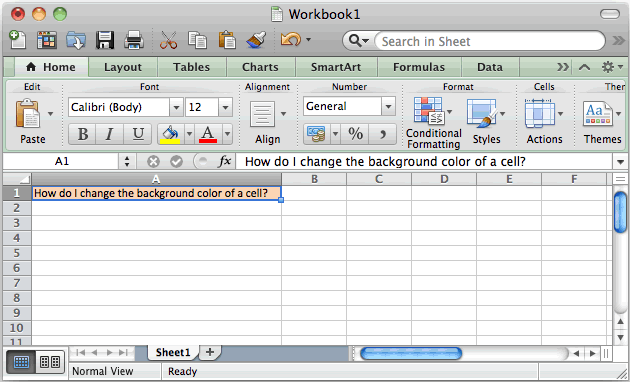
In this example, we've selected orange as the background color.
You should see a sample of the new background color in the Sample window. Click on the OK button.
Now when you return to your spreadsheet, the cells that you've selected should have a background color, as follows:


Advertisements